How to Chat with a PDF Offline on Android
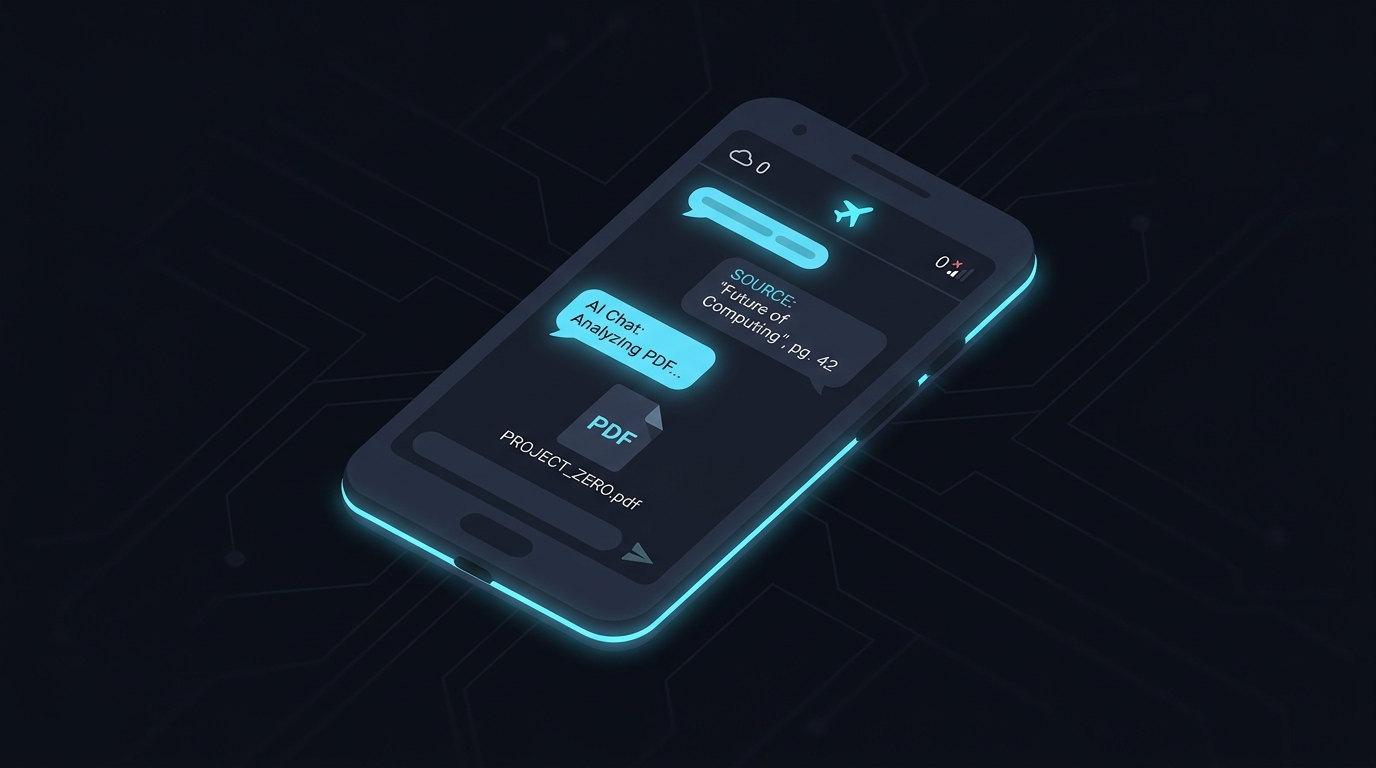
Most "AI for PDFs" tools work the same way: you upload your document to a server, their AI reads it, and answers come back over the internet. That works fine until you are on a plane, in a location with restricted Wi-Fi, or simply not comfortable sending sensitive documents to someone else's cloud.
This guide shows you how to chat with a PDF completely offline on Android using Anvit, a free app that runs the entire AI on your phone — no upload, no account, no internet required after the first setup.
What you need
- An Android phone running Android 8.1 or later
- The Anvit app, free on Google Play
- A PDF, Word (.docx or .doc) file you want to ask questions about
- Around 2.5–3.5 GB of free storage for the AI model
No subscription, no sign-up, no API key.
Step 1 — Install Anvit
Download Anvit from Google Play. The app itself is small — the storage goes toward the AI model in the next step.
Step 2 — Download the AI model
On first launch, Anvit shows a model selection screen. Two options are available:
- Gemma 4 E2B (~2.5 GB) — recommended for most phones. The app suggests this if your device has less than 10 GB of total RAM.
- Gemma 4 E4B (~3.4 GB) — higher quality answers. Recommended if your device has 10 GB of RAM or more.
The download happens once over Wi-Fi and shows real-time progress (filename, percentage, and speed). After it completes, the internet connection is no longer needed.
Step 3 — Add your document
Tap the upload button in the documents screen and pick a PDF, .docx, or .doc file from your storage. Anvit parses the document's structure — headings, sections, tables, and lists — then generates embeddings for each chunk entirely on your device. A progress banner shows the status in real time.
Step 4 — Start chatting
Tap the document and type your question in the chat bar. Anvit uses an agentic pipeline that retrieves the most relevant passages from your document using a combination of dense vector search and lexical matching, then generates a grounded answer using Gemma 4 running locally.
Every response includes a sources panel showing which document sections were used, so you can check the underlying content directly.
Step 5 — Use it offline
Turn on airplane mode. Ask another question. It works. All inference and retrieval run on your device — nothing leaves your phone after setup.
Think Mode — see the reasoning
For complex questions, tap the lightbulb icon in the chat input bar to toggle Thinking on. When enabled, the model shows its reasoning steps in a collapsible section above each answer. This is slower but more accurate for multi-step questions like "What are the key risks in section 3 and how does the mitigation plan address each one?"
Organise documents with Collections
Create a Collection to group related documents — a project folder, a set of contracts, course readings. In the chat screen, tap the "Searching in:" pill above the chat bar to open the collection picker. Select a collection to restrict all searches to only the documents inside it.
Common questions
Does it work in airplane mode? Yes. After the initial model download, Anvit works with no connection at all — offline operation is a natural consequence of running everything on-device, not a mode you have to enable.
What file types are supported? PDF, Word (.docx), and older Word (.doc) files.
Is there an iOS version? Anvit is live on Android today. An iOS version is in development — add your email on the Anvit website to be notified when it launches.
If you need to work with documents without sending them to the cloud, Anvit is built for exactly that. Download it free on Google Play.